


Easy Trace: Learn to Draw
4.411.00 Reviews
App Specs
- Version
- 1.0.18
- Updated On
- License
- Free
- Downloads
- 500,000+
- Developer
- TLAppsHub
- Categories
- Art & Design
- Platform
- Android
Screenshots
 Analysis by AppCompare
I see Easy Trace as a low-pressure way to get a pencil moving, not a shortcut to polished art. Its central appeal is practical: it gives beginners a visible guide to follow while they practise. That can make the blank page feel less intimidating, especially when you want to draw for a few minutes rather than commit to a formal lesson. I’d recommend it most to curious newcomers and casual doodlers who learn by doing, with one caveat: tracing is a useful starting exercise, but it works best when you gradually make more decisions on your own.
A gentler route past the blank page
As an art and design app from TLAppsHub, Easy Trace: Learn to Draw takes an approachable route into drawing practice. The tracing format gives your hand a path to follow, while step-by-step lessons and regular practice encourage you to return to the basics. I like that combination because it gives a beginner something concrete to do without pretending that every user needs a full digital studio.
The distinction matters if you are deciding between this and a general-purpose drawing app. A blank canvas offers freedom, but it can also leave a new artist wondering where to begin. A tracing exercise supplies a starting shape and lets you focus on line control, proportion, and patience. That is a narrower kind of practice, but often a more comfortable one when you are still building confidence.
Getting Started with the App
So, I downloaded Easy Trace: Learn to Draw on my phone, and the first thing I noticed was its user-friendly interface. Seriously, even if you're not tech-savvy, you'll find your way around in no time. The app kicks things off with a quick tutorial that walks you through the basics. Think of it as a gentle nudge to get your creative juices flowing. You can dive right into drawing or explore the features at your own pace.
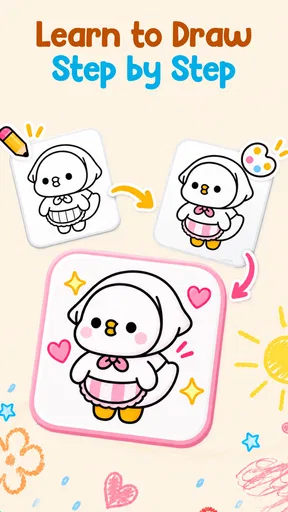
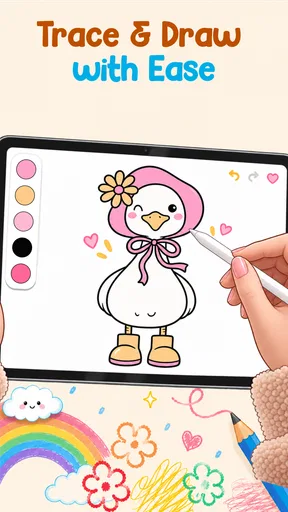
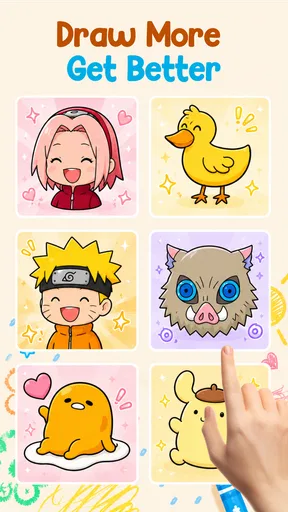
One of the coolest features is the library of templates. Whether you're into sketching landscapes, animals, or even anime characters, there's a template for just about everything. You just pick one, and the app overlays it on your screen, allowing you to trace it effortlessly. It's like having your personal art instructor on standby, offering guidance whenever you need it.
Making practice more useful
The template approach is most valuable when I treat it as an exercise rather than a finished result. I’d trace a subject once to get familiar with its outline, then try drawing the same subject again while looking at the guide less often. That small change turns a guided activity into a way to notice shapes and proportions. If you are practising with a child, you can make the same shift together: first follow the outline, then ask them which parts they remember and want to draw without it.
A realistic use for the app is a short evening break at home. You could choose a simple subject, spend a little time following its main contours, and stop before the session starts to feel like homework. Keeping the goal modest—one attempt, or one detail you want to improve—makes daily practice easier to fit around other plans. The point is not to produce a masterpiece every time; it is to build familiarity through repeated, manageable sessions.
Worth Reading Before You Choose

EA SPORTS FC Mobile 26 Is a Bigger Football Game, but It Takes Time

Flipboard Shows What News Apps Must Do Beyond the Feed

Switching to Android Auto Means Rethinking Your Driving Routine

Google Calendar Makes a Crowded Week Easier to Manage

Ludo King Makes the Most of the Minutes Between Plans

Baby Panda World Brings Quick Play to Modern Phones, but Its Game Library Feels Busy
There is also a practical trade-off in choosing a phone for drawing. It is convenient to have a guide close at hand, and a small screen suits quick practice, but it may feel cramped if you want to work on fine details for a long stretch. I would use a larger screen or a paper-based exercise when comfort and room to make broad marks matter more than portability. Easy Trace is most appealing when ease of access is the priority.
Features That Stand Out
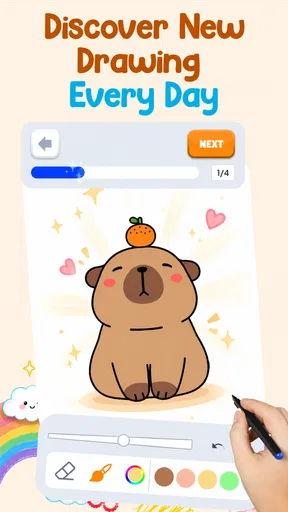
Let's talk features. The app offers a range of tools that mimic real-life drawing instruments. You can choose from pencils, pens, and brushes, each with adjustable thickness and opacity. It's pretty much like having an art store in your pocket. Plus, the color palette is expansive, giving you endless shades to play with.
Another standout feature is the layering option. It allows you to draw on multiple layers, which is perfect for adding depth to your artwork. You can work on the background, then add details in the foreground, just like the pros do. It's a feature that really elevates your art from basic to brilliant.
Even if your main aim is tracing, it helps to think about how you use those drawing tools. A thicker mark can make the general shape easier to establish, while a finer one is better suited to careful edges. I’d start with a simple outline and add only the details that clarify the subject; changing brush settings constantly can distract from the practice itself. Layers can also make experimentation less intimidating: separating a rough pass from later detail gives you room to refine the image without treating every early mark as final.
That workflow is different from tracing on paper with a lightbox or copying a reference by eye. Paper can be more comfortable for people who prefer the feel of a pencil and do not want a screen involved. Drawing from observation is a stronger choice when your main goal is to develop independent visual judgement. Easy Trace sits between those options: it offers more digital flexibility than a simple paper guide, but the tracing aid means you still need to choose when to move beyond following a model.
There's also a nifty playback feature that records your drawing process. It's not only satisfying to watch your creation come to life, but it also serves as a learning tool. You can replay your strokes and see where you can improve or try a different technique next time.
Where it fits—and where it doesn’t
Playback is particularly useful when you review one specific choice rather than simply watching the whole drawing again. I’d look for the point where a line became awkward or where I hesitated, then make a note of what I want to try differently in the next attempt. That turns a satisfying replay into a small feedback loop. It is a more active way to practise than tracing the same outline repeatedly without reflecting on what felt difficult.
The app’s broad appeal makes sense: it is free, rated for Everyone, and has an average rating of 4.8 from 226 ratings, with over 100K installs. It was released on Apr 23, 2026, and version 1.0.5 lists Android 8.0 as the minimum operating system. Those details make it easy to assess whether it fits a household device, but the more important question is what kind of learner you are. Someone who likes clear visual guidance may welcome the structure; someone who wants to invent characters from scratch may prefer a blank-canvas app or a drawing course built around observation and fundamentals.
I would also keep expectations grounded. Tracing can help with confidence and controlled lines, but it does not automatically teach you how to judge a subject’s proportions when the guide is gone. To get more from the exercises, vary your routine: trace once, redraw from memory, then compare the two and choose one feature to work on. That approach makes the guide a temporary support instead of a permanent crutch.
A sensible choice for casual learners
If you're someone who loves to doodle or wants to learn how to draw, this app is a dream come true. It's perfect for all ages and skill levels. Kids will find it engaging and educational, while adults can use it as a stress-buster or to improve their skills. The app makes learning to draw both fun and accessible.
For a younger beginner, I’d make the activity collaborative rather than focusing on whether the result looks exact. Let them pick a subject, follow the guide at their own pace, and talk about which curves or shapes were easiest to recognise. An adult returning to drawing might use the same structure differently: a short tracing session can help rebuild hand confidence before moving on to a notebook or a more open-ended digital canvas. In both cases, the value is in having an easy first step, not in judging the finished picture.
It is less suited to an artist who already has a settled sketching routine and wants advanced instruction, or to someone whose priority is learning to draw entirely from observation. Those users may get more from structured lessons on anatomy, perspective, or composition, or simply from studying a real object and making their own marks. I would also skip it if the main attraction is a large, unrestricted workspace: tracing-led practice and freeform creation are different experiences, and neither replaces the other.
And let's not forget the community aspect. You can share your creations within the app's community or on social media, getting feedback from fellow artists. It's a great way to connect with others and get inspired by their work.
If sharing matters to you, I’d treat feedback as a source of ideas rather than a scorecard. A comment can point out a detail you did not notice, but it is still more useful to decide what you want to practise next than to chase approval. For someone who prefers to keep early sketches private, the app can still serve as a personal practice tool; sharing is an option, not the reason I would choose a tracing app.
My verdict after weighing the trade-offs
Overall, Easy Trace: Learn to Draw is an app that I can wholeheartedly recommend. It's not just about tracing; it's about learning and growing as an artist. The app offers a balance of fun and functionality, making it a must-have for anyone interested in drawing.
My recommendation is strongest for beginners, families looking for a creative activity, and casual artists who want a guided way to practise on a phone. If you are weighing whether to start with tracing or a conventional drawing tutorial, choose this when a visible outline will help you begin; choose a more open lesson or observation-based method when you want to make every shape decision yourself. It is also a sensible low-commitment option for trying drawing practice, since it is free and the age rating is Everyone.
So, if you're ready to unleash your inner artist, give Easy Trace: Learn to Draw a spin. Whether you want to learn how to draw or simply unwind with some creative fun, this app has got you covered. Happy drawing!
Pros
- Intuitive interface for beginners.
- Wide variety of drawing templates.
- Offline access for uninterrupted practice.
- Progress tracking to monitor improvement.
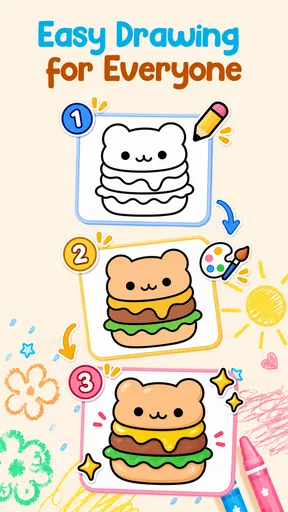
- Tutorials with step-by-step guidance.
Cons
- Limited advanced features for pros.
- Occasional app crashes reported.
- Ads can be intrusive at times.
- In-app purchases for extra templates.
- No social sharing within the app.
FAQs for Easy Trace: Learn to Draw
What is Easy Trace: Learn to Draw and how does it work?
Easy Trace: Learn to Draw is a mobile application designed to help users enhance their drawing skills. It utilizes a unique tracing method where users can trace over images on their screen. This approach helps beginners and advanced artists alike to understand proportions and improve their technique with daily practice.
Is Easy Trace suitable for beginners as well as advanced artists?
Yes, Easy Trace is designed for both beginners and advanced artists. For beginners, it offers step-by-step tutorials and easy tracing exercises. Advanced users can benefit from the app’s detailed features, which allow them to import complex images and refine their skills through precise tracing techniques.
What features does Easy Trace offer to enhance the learning experience?
Easy Trace provides a variety of features such as adjustable tracing layers, a vast library of images, and in-app tutorials. Users can import their own images for personalized practice. Additionally, the app includes tools for adjusting opacity and line thickness, enabling a customizable drawing experience.
Can users share their progress or completed drawings from Easy Trace?
Yes, Easy Trace allows users to share their artwork directly from the app. Once a drawing is completed, users can save their work to their device or share it on social media platforms. This feature encourages community engagement and allows artists to receive feedback and encouragement.
Is Easy Trace available for both Android and iOS devices?
Easy Trace is available for download on both Android and iOS platforms. Users can find the app in the Google Play Store for Android devices and the Apple App Store for iOS devices. Regular updates ensure compatibility with the latest operating systems, providing a smooth user experience.


